
First login to your control panel, you can find instructions on how to do this in your Welcome Email or by following Accessing the control panel
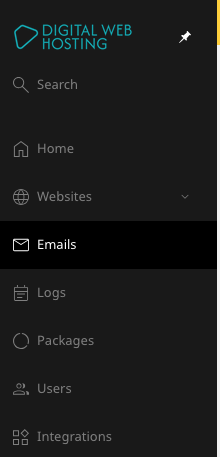
Once logged in click the Emails tab on the left panel -
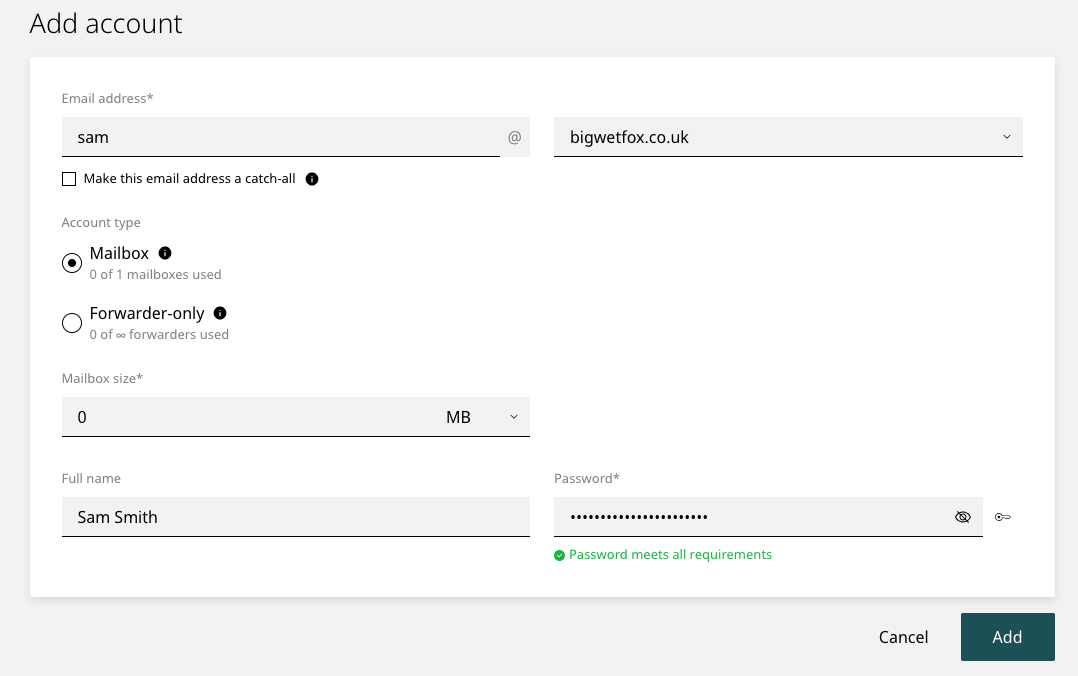
Click Add account then complete the form -
- Email Address - This is the prefix to your domain that will be used for emails, such as sam@bigwetfox.co.uk (or yourname@yourdomain.co.uk)
- Make this email address a catch-all - Usually you want to leave this unticked, if you enable this then any emails sent to any address @yourdomain will be delivered to that mailbox, this will attract a lot of spam.
- Account Type > Mailbox - This is usually the option you want, especially if you want to login to the account to send/recieve emails. If you just want to forward emails to another mailbox such as at Gmail you can select Forwarder-only and enter the destination.
- Mailbox size - We usually suggest setting this to 5GB, this setting determines the amount of space allocated to your mailbox, this is consumed by emails and attachments. This can be changed later and this usage is shown in your webmail.
- Full Name - This is important to set right, this is the name that will be shown when you send emails unless you change this in your webmail or email client.
- Password - Set a secure password, at least 10 characters with special characters, numbers and letters. This can be changed later.
Finally, click Add and that's it! You have an email account. You can now login to this via webmail or your chosen mail client.
Note that when using a mail client you will need the SMTP/IMAP details, you can find this by clicking the email account after you've created it then browsing to the bottom of the page where you will find "Email client settings"
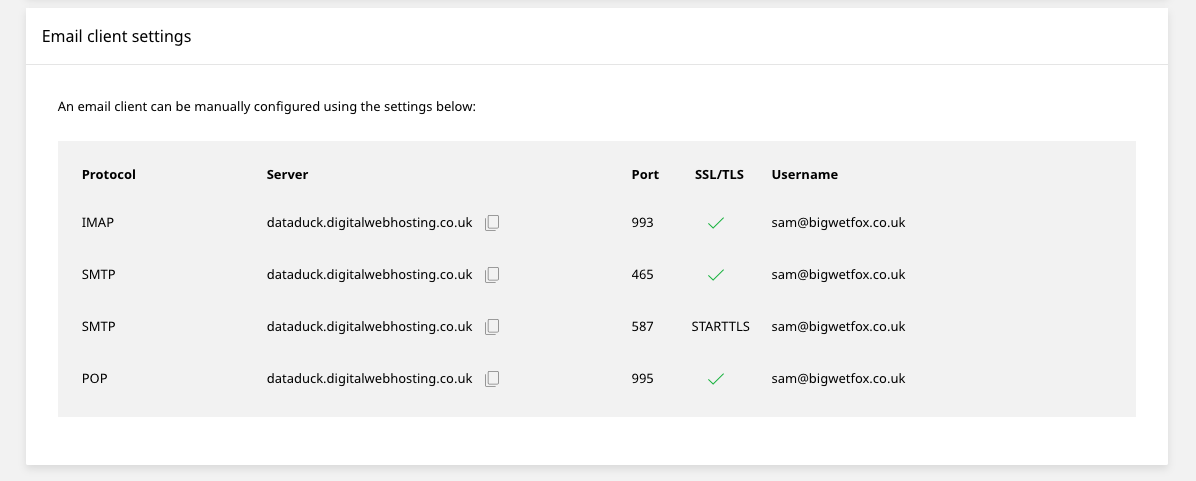
Note that these settings are specific to your mailbox/account, please do not copy those above.